How to Reset Chunks in Minecraft: 7 Step-by-Step Tutorials
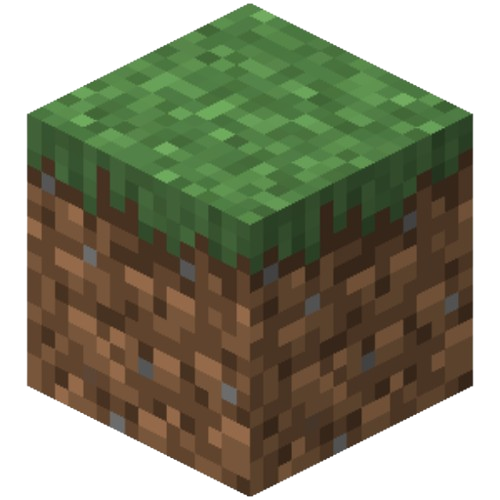
Minecraft Chunks are units that are managed by a game engine from blocks.
It’s like Land and they generate around players when you first generate the world. If you have been playing the game for a while now and explored a lot of it, you would have lots of chunks around your world you are not using.
The more you wander around the world, the new chunks generate as per needed.
To reset Chunks in Minecraft – Open the MCA Selector. Head to “File,” click “Open World” and select Region. Next, Left Click and hold to select Your areas. Go to Selection and Click “Delete Selected Chunks.” Select “Quit and relaunch Minecraft.
In this tutorial, we will be going over how to delete chunks with a step-by-step guide.
Why do you need to Reset Minecraft Chunks?
When a new Update is released, your current areas that existed will not be updated to the latest version.
So, you either need to find new chunks by going far away from your base/ home or reset chunks from your existing world that you haven’t found any use for or build anything on it to create new space for the new updates.
Another reason to reset Chunks is to avoid becoming laggy if you are building a large world- the data and files take too much space and the game becomes glitchy.
You can also reset Chunks if you wanna change the biomes of the areas close to you as resetting it could change to a new environment.
How to Reset Chunks in Minecraft
TIP: It is quite important to create a backup of your world folder before making any changes in it, since resetting changes are irreversible.
Step 1: Download the MCA Selector software.
Visit this link – https://github.com/Querz/mcaselector/tree/1.16.2 and scroll down to the Download Section.
Download the application, install it, and run it.
Step 2: Open the MCA Selector

When you open the program, it’s just a blank, black box grid. Next, You need to import your Minecraft world into it.
IMPORTANT: Make a Backup of your world before importing.
Step 3: Go to File
Select File < Open and it will go to your Minecraft World file.
Choose what you wanna change and if the chunks you wanna change is in Overworld, select region.
To change chunks, select:
- For Nether: DIM-1
- For End: DIM1
- Normal Biomes – Region
For this example, we will choose to reset chunks in Biomes, so it will be Region.
Step 4: Control Map
Your world will fill the screen and control the map using the Mouse wheel to select regions for resetting the chunks.
- Scroll Wheel: Zooms in and out of the map.
- Use the Left Click to Select items
- Right Click to Unselect items
- Arrow Keys: It Moves the camera.
If you wanna select and reset small chunks, zoom in to do so. You can also zoom out and select large chunks of the area for easier selection.
Step 5: Select Chunks

Use the MCA selector, Left click, and hold: Select the chunks by dragging the cursor of all the areas that you would like to reset.
Step 6: Delete Chunks

Now, that you have selected the areas for resetting, go to Selection and Choose “Delete Selected Chunks” or use the shortcut key CTRL+D
A pop-up notification will show up asking to confirm the deletion as “Are you Sure”
Click on OK.
Your Chunks are finally deleted and reset.
Step 7: Restart the World
The deleted chunks/ areas will show in Black on the map.
Now, you need to restart the world and the resettled area will be regenerated.
How to Filter Chunks in Minecraft
You can use the Filter Chunks in MCA Selector to specifically find things in your world that you wanna reset.
Click the + button and Select items from the drop-down menu:
Pallete – Choose any items/ world/ wood, etc that you like to select.
An example would be if you like to select a certain type of block, such as all the Oakwood in your world
Biome: Forests, Mountains, Deserts, Taiga, Snowy tundra, Ice spikes, Swamps, etc.
Inhabited Time: Enter time (<_3 hrs) and it will filter all the chunks and locations that you have been for over 3 hours.
How to Create a Backup before Resetting Chunks
- Go to the Game’s single-player menu.
- Select the world to back up.
- Click on the ‘Edit’ button.
- Choose the ‘Make Backup’ button.
- Minecraft will automatically start backing up your game.
It can take a minute to several minutes depending on the file size of the backup to complete.
Reloading Chunks Vs Resetting Chunks
Reloading chunks doesn’t delete any chunks as it only loads up the same chunk. You can reload if you don’t wanna delete any areas but there are some issues that are lagging your game.
Reloading chunks will be reverted to their original state without any changes.
On the other hand, Resetting chunks will completely remove any modifications that you have made such as built-on it within those chunks.
Resetting will clear the areas even after you go back to your game.
Fun Fact: Chunks are 16×6 blocks long, 384 blocks high with 98,304 blocks total, extending from Y=-64, all the way up to the build limit of Y=320.
Summary
Hopefully, this guide helps you out in resetting Chunks from your Minecraft world. If there are any questions or if I missed something, let us know in the comments below.
For any other Minecraft guides, check out our other sections of the blog for more tips and tutorials.
Also Read: How to Reload Chunks in Minecraft: Tutorials